How to Connect Your AI Assistant to Your Helpdesk with MCP
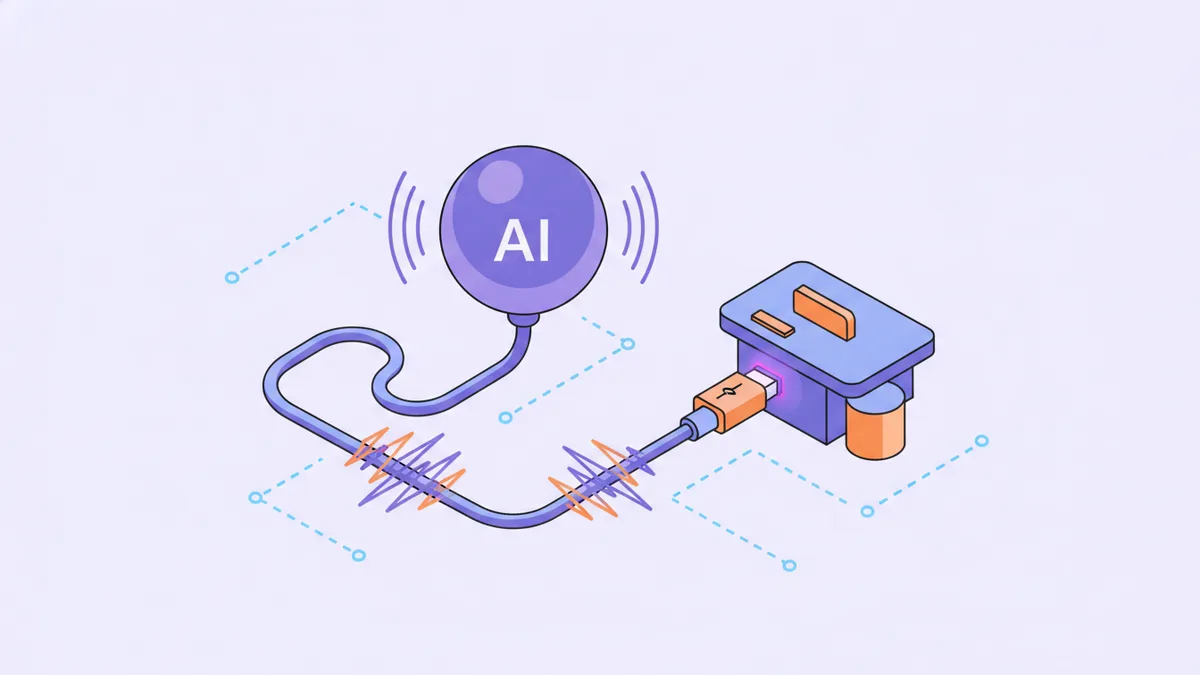
The Model Context Protocol (MCP) is an open standard that lets AI assistants call external tools. Instead of copying ticket details into a chat window and pasting replies back, MCP lets your AI read tickets, draft replies, search your knowledge base, and update statuses — all through natural conversation.
Helmdesk ships an MCP server. If you use Claude Desktop, Cursor, VS Code, Windsurf, or Claude Code, you can connect it in under two minutes.
What Is MCP?
MCP is a protocol created by Anthropic that standardizes how AI models interact with external data sources and tools. Think of it as a USB port for AI — any MCP-compatible client can plug into any MCP-compatible server.
Before MCP, connecting an AI assistant to your helpdesk meant building custom integrations, writing prompt templates, or copying data manually. MCP eliminates all of that. Your AI discovers available tools automatically and calls them when relevant.
Setting Up the Helmdesk MCP Server
Step 1: Create an API Key
In the Helmdesk dashboard, go to your project's API Keys page. Create a new key using the MCP / AI assistant preset. This grants four scopes:
tickets:read— list and view ticketstickets:write— create, update, and reply to ticketsarticles:read— search the knowledge baseai:use— access AI features like suggested replies
This is the principle of least privilege. Your AI can triage support but cannot manage email templates, billing, or webhooks.
Step 2: Add to Your AI Client
Claude Desktop — add this to your claude_desktop_config.json:
{
  "mcpServers": {
    "helmdesk": {
      "command": "npx",
      "args": ["-y", "@helmdesk/mcp"],
      "env": {
        "HELMDESK_API_KEY": "sk_live_your_key_here"
      }
    }
  }
}
Cursor / VS Code — add to .cursor/mcp.json or your VS Code MCP settings:
{
  "mcpServers": {
    "helmdesk": {
      "command": "npx",
      "args": ["-y", "@helmdesk/mcp"],
      "env": {
        "HELMDESK_API_KEY": "sk_live_your_key_here"
      }
    }
  }
}
Claude Code (CLI):
claude mcp add helmdesk -- npx -y @helmdesk/mcp
export HELMDESK_API_KEY="sk_live_your_key_here"
That is it. No server to host, no webhook to configure, no OAuth flow to manage.
Step 3: Start Talking
Once connected, your AI assistant discovers 8 tools automatically:
| Tool | What It Does |
|---|---|
| list_tickets | List tickets with filters (status, priority, search) |
| get_ticket | View a ticket with its full message thread |
| create_ticket | Create a ticket on behalf of a customer |
| update_ticket | Change status, priority, or category |
| reply_to_ticket | Send a staff reply (emailed to the customer) |
| send_email | Send a transactional email using a template |
| get_template_schema | Get variable schema for an email template |
| search_articles | Search the knowledge base |
Your AI also gets read-only access to three MCP resources: helmdesk://tickets/open, helmdesk://tickets/pending, and helmdesk://articles. These give the AI instant context about your queue without making explicit API calls.
Real Examples
Here are prompts you can use today. Each one triggers the right combination of tool calls automatically.
Morning Triage
"Show me all open tickets sorted by oldest first. For any waiting more than 24 hours, draft a reply and set them to pending."
The AI calls list_tickets to get the queue, get_ticket for each old ticket, uses knowledge base context to draft a reply via reply_to_ticket, and updates the status with update_ticket.
Knowledge Base Lookup
"A customer is asking about file upload limits. Find the relevant KB article and reply with a link."
The AI calls get_ticket to understand the question, search_articles to find the right article, and reply_to_ticket to send the answer with a link.
Bulk Classification
"Go through all new tickets. Anything mentioning 'down', 'broken', or 'outage' should be marked urgent. Everything else medium priority."
The AI calls list_tickets with a status filter for new, reads each ticket's subject and body, and calls update_ticket to set the appropriate priority.
Automated Resolution
"Find all tickets tagged 'known-issue' that are still open. Reply with the fix from our knowledge base and resolve them."
This combines list_tickets, get_ticket, search_articles, reply_to_ticket, and update_ticket in a single conversational flow. The AI handles 10 tickets in the time it takes you to type the prompt.
Daily Summary
"Summarize my support queue: how many open tickets, the oldest one, and any urgent ones."
One list_tickets call gives the AI everything it needs to produce a structured summary.
Security
The MCP server uses your scoped API key. It has no access beyond what the key allows. A few things to note:
- Scoped permissions — the MCP preset grants only support-related scopes. Your AI cannot manage email templates, webhooks, or billing.
- IP allowlists — if you want to restrict where API calls can originate, add an IP allowlist to your key.
- Audit trail — every action your AI takes creates the same logs as a manual action. Replies show up in the ticket thread. Status changes are recorded.
- No stored credentials — the API key lives in your local MCP config. The MCP server itself is stateless.
Why MCP Matters for Support Teams
The traditional approach to AI-powered support is a chatbot that sits in front of your help desk and tries to resolve tickets automatically. That works for high-volume consumer support, but it is wrong for developer-facing products where tickets are technical, nuanced, and often require human judgment.
MCP flips the model. Instead of replacing your support team with a bot, it gives your team an AI assistant that understands your helpdesk. You stay in control. The AI handles the tedious parts — reading through ticket history, finding relevant articles, drafting initial replies — while you make the decisions.
This is especially powerful if you run multiple products. With Helmdesk, each project has its own ticket queue and knowledge base. Your AI assistant can triage across all of them in a single conversation.
Connect your AI assistant to Helmdesk
Set up MCP in under two minutes. Your AI discovers the tools automatically.